

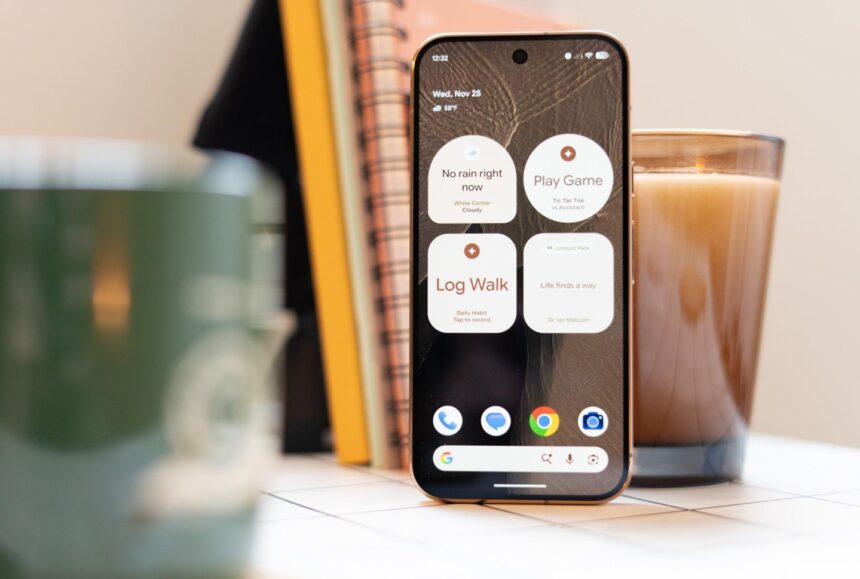
Android custom widgets have always been one of the platform’s best features, and now AI is making them easier to create. Aside from managing my calendar, there’s one thing I want AI to do: tell me if I’m about to miss the bus. What I need is a widget that shows real-time arrivals for the bus stop near my house. Tapping around my phone screen to open the right app and select my stop takes long enough that I could miss a bus. I need glanceable information, and I hoped Android custom widgets built with AI could help me out. They haven’t fully delivered on that front, to my disappointment, but I still had a good time cooking up other widgets.
What Is Create My Widget?
Google announced the ability to create custom widgets using AI back at I/O in the spring. The feature is called Create My Widget, and it’s part of Android’s suite of “Gemini Intelligence” features. It’s in beta and only just started rolling out to Pixel phones earlier this month. I was hyped. Not only does this feature raise tantalizing questions like “What is an app?” — it also puts widget creation in the hands of anyone who can describe what they want in plain language.
Why Android Custom Widgets Matter
Android custom widgets have long been a strength of the platform, but building them traditionally required development knowledge. Create My Widget lowers that barrier by letting you describe a widget in everyday words and letting AI generate it. For people who want glanceable information without digging through apps, that’s a meaningful shift. Android custom widgets built this way are not just convenient — they change who gets to make them.
My Bus Arrival Test
My first instinct was to test the feature against a real, practical need: a bus arrival widget. I described what I wanted — real-time arrivals for the stop near my house — and waited to see what the AI would produce. The result didn’t fully deliver the glanceable, always-current information I was hoping for. That’s a fair limitation to note for anyone expecting Android custom widgets to replace dedicated transit apps right away.
Cooking Up Other Widgets
Even though the bus widget didn’t pan out, experimenting with other ideas was genuinely fun. The appeal of Android custom widgets built this way is the low-stakes creativity: you can describe something small and useful, generate it, and see what comes back. It’s vibe-coding in widget form — playful, fast, and a little unpredictable. Some ideas worked better than others, and that unpredictability is part of the charm when you’re trying Android custom widgets for the first time.
What to Expect From the Beta
Create My Widget is still in beta and rolling out gradually to Pixel phones. If you’re trying Android custom widgets for the first time, treat it as an experiment rather than a finished tool. Results will vary, and some use cases — like real-time transit data — may not work as smoothly as simpler, static widgets. Patience and curiosity go a long way when the feature is this new.
Tips for Getting Started
If you want to try Android custom widgets through Create My Widget, start with simple ideas. A widget that shows a fixed piece of information or a basic summary is more likely to work well than one that depends on live data. Describe exactly what you want to see, keep your expectations realistic for a beta feature, and be ready to iterate. The fun of Android custom widgets here is in the experimenting, not in expecting a polished product on the first try.
Android custom widgets through Create My Widget are a bit of vibe-coding fun. They won’t solve every glanceable-information need yet, but they make widget creation more accessible and genuinely enjoyable to try. For Pixel owners curious about where AI-assisted Android custom widgets are heading, it’s worth a look.